Showing posts with label CRM Client for Outlook. Show all posts

Tuesday, July 2, 2013

How to Configure CRM 2011 with Office Outlook 2010 using IP Address

When you configure CRM Client for Office Outlook, you know that you are required to specify the URL of the CRM application usually of the kind: http://[ServerName]:5555/[OrganizationName]

When I tried to do this, the configuration wizard error'd out with a generic error of, "Could not connect to Microsoft Dynamics CRM Server, please contact your Administrator."

Even if I tried via the server IP address, I received the same error.

THE SOLUTION

Prepare your server for the configuration process
  • Modify the host file on your server to add a mapping between IP address and server host name. For example: If your IP address is 10.1.1.115 and the host name of the server is "CRMSERVER". Navigate to c:\windows\system32\drivers\etc and open the file hosts in your notepad and add the following line as shown in the image below.

Prepare the client machine for the configuration process
  • In your IE (Internet Explorer), add http://crmserver/ to your Local Intranet zone. Steps: Open IE > Tools > Internet Options > Security Tab > Local Intranet > Click on Sites > Advanced button.
  • On Windows Credential Manager, add your credentials. Steps: Navigate to Control Panel > Open Credential Manager > Add a Windows Credential
Internet or network address : crmserver
Username : [domain]\[your username]
Password : [your domain password]
  • Check if CRM is still accessible via the Internet Explorer Browser?
Now configure CRM 2011 for Office Outlook. In the Server URL field type, http://[CRM Server IP]:5555 > Click on Test Connection > Choose an Organization and click OK


Monday, May 20, 2013

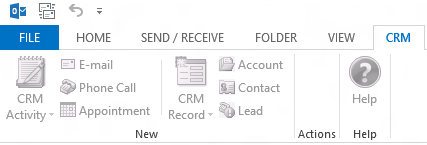
CRM ribbon disappears from Microsoft Outlook

This is really strange. Isn't it?

I thought CRM client installations were simple and I gained confidence every time I  installed and configured
CRM client on yet another PC (totally 5). The 6th one made me remember my early CRM days.

To get around this issue I referred to the KB article at this URL

OR

To resolve this problem, follow these steps:
  1. Exit Outlook.
  2. Click Start, click Run, type regedit, and then click OK.
  3. Locate the following registry subkey:
    HKEY_CLASSES_ROOT\TypeLib\{2DF8D04C-5BFA-101B-BDE5-00AA0044DE52}
  4. Right-click the 2.4 registry key, and then select Export. Save the export to your desktop to create a backup.
  5. Right-click the 2.4 key again, and then select delete.
  6. Start Outlook.

Saturday, March 2, 2013

How to fix: This message has not yet been submitted for delivery

To make this message disappear you have to make certain configurations in CRM like one of the following:
  • Check to see if you have approved the CRM user to send an email. Settings > Administration > Users > Select the user and click Approve Email.
  • Open CRM user record and check Email Access Configuration section on the form. Make sure the correct profile has been chosen. i.e. If you are using Email Router to route incoming and outgoing emails, make sure the Email access type - Incoming and Email access type - Outgoing are set to Email router. (Make sure email router is configured for this).
  • In continuation to the above point, if you are using Outlook to send and receive emails, make sure Email access type - Incoming and Email access type - Outgoing are set to Microsoft Dynamics CRM for Outlook. (For this to work, you have to install and configure Microsoft Dynamics CRM Client for Office Outlook on the Client machine).
These steps are sure to help you understand the various check points to configure emails correctly in CRM. Share them with others if you know of someone who is battling their minds on this.

PS: Now I was using Microsoft Dynamics CRM Client for Office Outlook to send and receive emails and made sure the appropriate configurations have been done but, the message still seems to bother me. I noticed my Office Outlook application was closed :)

Monday, April 30, 2012

Microsoft Dynamics CRM for Outlook Configuration Troubleshooting

CRM Outlook Client Subject Matter Experts have devised a wizard that you can follow to fix CRM Outlook Client Configuration Issues. Whether you use CRM Online or CRM On-Premise, go ahead by selecting your deployment to get to-the-point fixture solution.

A very useful piece of information can be read in full here.

Wednesday, July 6, 2011

Top CRM Resources

Microsoft Dynamics CRM Team Blog: Here you can connect with CRM team for all the news & views on Microsoft Dynamics CRM. So much on development, customization, implementation, CRM scoops, announcements, documentation, download links. You are only beginning to learn about CRM :)

Dynamics Forums: Ask and it shall be given. Q&A resource on Microsoft Dynamics CRM. Anything from "What is CRM" to "Can I find a Microsoft Dynamics CRM partner in Antarctica", you will receive an expert advice.

Microsoft Dynamics CRM Wiki: Well organized page from an introduction to CRM to development, deployment, articles, whitepaper, resources and much more. You can possibly reach every official resource on CRM on the internet, from here.

More social resources: Facebook, Twitter, LinkedIn, YouTube

Time to grab some knowledge folks!

Tuesday, September 14, 2010

Update Rollup vs. Build Version comparison for Microsoft Dynamics CRM

To determine which update rollup is installed on your server or client, the below table provides a precise mapping between the update rollup version and CRM build version.

(This post is regularly updated to keep current with the latest releases)

The updates documented in this blog for:
  • Microsoft Dynamics CRM 4.0
  • Microsoft Dynamics CRM 2011
  • Microsoft Dynamics CRM 2013
  • Microsoft Dynamics CRM 2015
  • Microsoft Dynamics CRM 2016
You can use the below command using SQL Server Management Studio on your CRM database to determine the current version of CRM.

select * from BuildVersion


If you're unable to view the above table, click here to see it in a new page.

As mentioned earlier, I'll try to keep this post updated. In case of any delays, thank you for leaving a comment below. This will keep other visitors updated while notifying me too to take an action.

Tuesday, April 20, 2010

Who has the Outlook Client Installed

There could be times when you would want the list of User's using the CRM Client for Office Outlook. Here is a small script which you could execute on CRM's Organization database. This script will give you the machine name and user's fullname.

SELECT dbo.Subscription.MachineName,
dbo.SystemUserBase.FullName
FROM dbo.Subscription, dbo.SystemUserBase
WHERE dbo.Subscription.SystemUserId = dbo.SystemUserBase.SystemUserId

Thursday, September 24, 2009

CRM Client for Office Outlook over VPN

Recently I was working on a project where the CRM Client for Office Outlook needed to be connected to the CRM Server over the VPN. It seemed obvious that this would work seemlessly without much configuration(s) involved. Once you establish a connection or open the VPN tunnel, it's likely that CRM Client would automatically connect to the Server and load the CRM Toolbar in Outlook, which wasn't the case at my end.

I will conclude this post with the steps I took to get the CRM Client for Office Outlook running over the VPN.
  1. On the Client machine. Navigate to C:\Windows\System32\drivers\etc
  2. Open the file "hosts" with notepad.
  3. Add an entry with the CRM server name and the IP address in the following format
    servername (HIT TAB) IP address.
  4. Save the file.

CRM Client must now connect successfully to the Server. The above steps confirms that NSLOOKUP command to the CRM Server works fine with correct resolution.

Thursday, July 16, 2009

CRM for Outlook cannot be installed on a computer where Exchange Server prior to Exchange Server 2007 are installed

Did you ever happen to see this especially when you are installing CRM client for Outlook?
Microsoft Dynamics CRM for Outlook cannot be installed on a computer where Microsoft Exchange Server versions prior to Exchange Server 2007 are installed.

It showed up today while I was installing Microsoft Dynamics CRM 4.0 Client for Office Outlook on one of the client machine's and this is how I went about solving it.
  • Click Start > Run and type regedit.exe (Registry editing has been disabled by your administrator)
  • Navigate to HKEY_Local_Machine\Software\Microsoft\Exchange
  • Right click Exchange and export it as .reg file
  • Now delete the Exchange folder from the registry
  • Go ahead and install Microsoft Dynamics CRM 4.0 client for Office Outlook and also configure the CRM client.
  • Once through with installation and configuration of CRM client for Office Outlook, restore the Exchange .reg file back into the registry. (Just double click it to add it back into the registry)
Your client user should be happy now!

Tuesday, June 23, 2009

CRM Client for Outlook Error - The path is not of a leagal form

While installing CRM v4.0 client for Office Outlook you might encounter an error
THE PATH IS NOT OF A LEGAL FORM.

It may also appear while installing the Data Migration Manager for CRM v4.0. Here is the solution.