Showing posts with label Power Platform. Show all posts

Thursday, February 19, 2026

Field Service pricing vs ERP pricing: How to turn off the Clash

In Dynamics 365 Field Service, pricing and cost can be calculated by Field Service itself (using features like price lists, products, services, agreement pricing, etc. within Field Service). However if you'd like, you can always disable it.

This happened in one of our environments that a solution dependency was created. When I looked, there was a solution installed with the name: msdyn_FieldServiceDisablePricingComponents

I tried looking at sources from where I can download and install this solution. However, this simple setting in Field Service solves it.

When people say “install the Field Service Disable Pricing Components solution”, they’re usually referring to a built-in capability controlled by Field Service Settings, not a separate managed solution you import into Dataverse.

The practical outcome:
  • Field Service stops calculating price and/or cost
  • Another system becomes the source of truth (e.g., Project Operations, Finance & Operations, or an ERP)

Prerequisites


Before you change settings, make sure you have:
  • Administrator rights to the Power Platform environment (System Administrator / Field Service Admin equivalent).
  • Dynamics 365 Field Service installed in the environment.
  • Access to the Field Service app and the Settings area.

Step-by-step: Disable pricing components


Step 1: Sign in
  • Open the browser.
  • Sign in to your Dynamics 365 Field Service instance.

Step 2: Open Field Service Settings
  • Go to the Field Service app.
  • In the sitemap (left navigation), switch to Settings (typically near the bottom).
  • Under General, select Field Service Settings.

Step 3: Change Work Order / Booking pricing options
  • Open the Work Order / Booking tab.
  • Update these settings:
    • Calculate Price = No
    • Calculate Cost = No
  • Select Save & Close.
That’s it—Field Service will stop calculating those values internally.

Saturday, March 30, 2024

D365 CE | Identify and clean up storage space

Accumulation of data over time can lead to storage issues that in turn impacts system performance in Dynamics 365 Customer Engagement (CE). If you're receiving constant notifications, it means you are reaching the capacity limits or already over capacity.

Here's how you can analyze the database capacity usage and steps you can follow to clean up the data using Power Platform, Bulk Record Deletion and Advanced Find.

Check Database Capacity

Here are the steps:

  • To check database capacity navigate to Power Platform Admin Center.
  • Click on Resources > Capacity. This takes you to the summary page that shows you the overall database usage and percentage available / over. In this case you can see that the Log is much over capacity. So let's see what do these Logs contain.


  • If you click on Dataverse located across  the page as a tab next to Summary, you can see all the Environments and usage based on area like Database, File or Log storage.
  • Click on the chart icon to see the details.


  • Here you can see based on the area and tables that are occupying the most storage. In the below image you can see how the Log usage for table AuditBase has been growing exponentially.
So let's delete the Audit Logs and follow other methods to delete data from specific tables.


Free up storage capacity

  • To do so, navigate to Power Platform Admin Center and click on the Environments.
  • Select the Environment for which we need to delete the audit logs.


  • Select Delete Audit Logs. You can also setup how long you want to retain the logs for for automatic ongoing maintenance.


  • A window will pop-up from the right where one can select appropriate action.


Note: The system can take up to 24 hours to update storage information. It is recommended to wait up to 24 hours and monitor your storage.

This is one of the methods you can use to free up storage space.
  • Similarly you can delete PluginTraceLogs (Advanced Settings > Settings > PlugIn Trace Logs).
  • WorkflowBase


  • Notes with attachments.


Hope this helps!

Monday, March 13, 2023

D365 CE Preview Feature (Collaboration and Co-authoring)

One of the most common ask from our customers is, does the app block one user from accessing or making changes to a record if another user has opened the record on their screen?

While this is not quite like restraining a user from updating a record because of multiple users accessing it, this feature does allow you to see the other folks that are collaborating on the same record.

You’ll need to enable this in your environment to take advantage of this feature.

  • Open https://admin.powerplatform.microsoft.com
  • Select the environment where you want to enable the functionality.
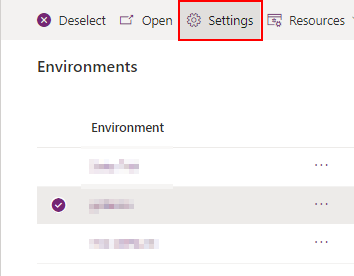
  • Click on Settings on the command bar (located on the top of the screen).
  • Expand the Product section and select Features.


  • Scroll down to Collaboration section on the left side of the screen.
  • Turn on 'Show other people when they're using the same form'.
  • Now when 2 or more users access the same form, you'll see the co-presence indicator showing all the users. It is very similar to what we see on Microsoft 365 Apps (Word, Excel, etc.).
  • This is only enabled for Account, Contact, Opportunity and Case forms during preview.


Here I would also highlight 2 other features that you can enable.
  • You can also see you can initiate a Teams meeting directly from appointments. For that flip the switch 'End users can add and join Teams meetings from appointments in model-driven app' under the Collaboration section.
  • There is also co-authoring for model-driven apps where you can see the users making changes to forms, views or dashboards using the power apps maker portal. With coauthoring you can see who is working on the same app at the same time, and you can see their applied changes in real-time.
Interesting!

Monday, May 9, 2022

How to enable modern advanced find in model-driven apps: Dynamics 365 CE (CRM)

I recently came across this new feature to enable modern advanced find in model-driven apps. Thought to share with you all.

Note: When you enable the feature, the advanced find button that you usually see on the bar top right will be gone. There will be changes in the way you access and modify personal views. If you're ready to enable this for your organization, keep reading forward.

Old Experience:

New Experience (No advanced find icon):


Steps to enable modern advanced find in Dynamics 365 CE (CRM)

Following are the steps:

  • Expand Product and click on Features.
  • Scroll down to Advanced find options and toggle the button to On. It will take a few minutes and enable the modern advanced find in your environment.

Now the question is how to access modern advanced find?


Access modern advanced find in Dynamics 365 CE (CRM)

To access, you need to click on the global search box and below you will find this option "Search for rows in a table using advanced filters".


Click this and you will see a flyout option from the right where you can select the entity (table). Click Continue and you'll have the option to edit filters.


Now you ask, how to manage personal views? Click on the View chevron icon. This will dropdown a list of views (both system and personal) configured. Personal views are shown with a person icon. To create, set default or delete personal views, click on Manage and share views.


Hope that helps!