Showing posts with label Power Automate. Show all posts

Saturday, February 17, 2024

Solved – Power Automate: Cannot write more bytes to the buffer than the configured maximum buffer size: 104857600

We had designed a power automate flow and used the List rows action step. While running the flow, we received the below error.

BadRequest. Http request failed as there is an error: 'Cannot write more bytes to the buffer than the configured maximum buffer size: 104857600.'.

Screenshot of the error below.

Cannot write more bytes to the buffer than the configured maximum buffer size

This happens because there is a 100 MB Message Size limits in Power Automate.

Solution

  • Allow Chunking if it is supported by the action.
Allow chunking in power automate
  • Or be specific with the columns you want to return. In the List Rows action, update the Select columns to limit the data returned.
  • Temporarily update the data in the system so that fewer rows are returned. For example, if your condition is to return all the rows where field_name does not contain data. Say this is return 5000 rows. Now update few rows with some sample data and run the flow so that it returns limited rows for processing. (This is not recommended in production, but could be a quick fix if the client agrees to it).
Hope this helps!

Wednesday, September 27, 2023

Unable to update Order Product using Workflows in D365 CE

Here is a note for y'all, something to keep in mind when working with workflows in Dynamics 365 Customer Engagement (D365 CE).

You can create a workflow (i.e., initiate a workflow) on the following tables:
  • Opportunity Product
  • Quote Product
  • Order Product
But when you add a step to Update record within the workflow, you'll notice that you cannot update the above mentioned tables (entities). You can however update any of the related tables linked with these tables.

Add Price List Items too into the above mix. Can create a workflow based on this table, but cannot update Price List Item record using a workflow step.

I believe the workaround would be to use Power Automate flows instead of Workflows. I haven't tried this as yet, but I believe it is possible.

Hope it helps!

Sunday, April 24, 2022

Power Automate: How to format a date column in Create HTML Table

I had recently written a post on how to populate the lookup value instead of the GUID in Power Automate. You can refer to the same blog post by clicking here.

I had formatted the Created On field too using the same steps as mentioned in that post.

Unit next time!

Wednesday, April 20, 2022

Power Automate: How to add a space between words in header row of Create HTML Table action

 When you add Create HTML Table action step in Power Automate , you can select to add custom columns as headers. When you enter the column names, you will notice that you cannot add a space as shown below. Strange but true.


Even if you go into Peek Code section of the step, you cannot edit it there.

After spending sometime looking for it on the internet, I found that you need to enter a special character that represents a space character. Here are the 2 steps:

  • Place the cursor between Created & On.
  • Ensure that your NumLock is switch on.
  • Hold down the Alt key and enter 32 using the numpad on your keyboard.
  • That will add a space between the 2 words.

I know, I hear you sigh :)

Unit next time!

Sunday, April 17, 2022

Power Automate: How to get the value of a lookup column in Create HTML Table action

In the below table, I wanted to show the name of the Owner. But if you add the Owner (Value) column directly using dynamic content, you know that it shows the GUID instead of the name. So here is what you need to do.

HTML Output using Power Automate

You need to enter the content as an expression and append the value @OData.Community.Display.V1.FormattedValue after the column name. Here is how the expression will look (without the " quotes) "item()?['_ownerid_value@OData.Community.Display.V1.FormattedValue']", and the value is going to look like a function as shown below.

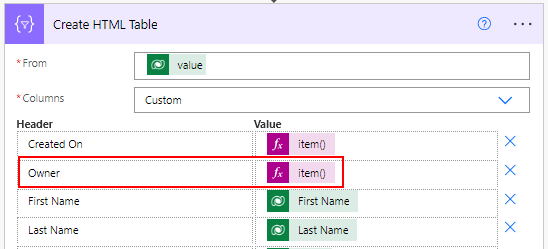
Create HTML Table action step in Power Automate

So, the question is how do you build this expression for the Owner column or any other field (column) in Dynamics 365 CE (Customer Engagement)?

  • Let the Owner (Value) Dynamic content be selected.
  • Click the 3 dots next to Create HTML Table.
  • Select Peek Code.
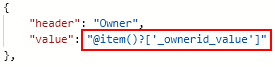
  • You'll see the value as item()?['_<FieldName>_value']
Note: The <FieldName> may be any lookup field name too.

Lookup value using Power Automate
  • Copy this value in a notepad.
  • Append the value as mentioned above so the whole value looks item()?['_<FieldName>_value@OData.Community.Display.V1.FormattedValue']
  • Copy this in the Expression section and click OK.
Note: This works if the you're using a Dataverse connector. It doesn't work if your connector is Dynamics 365 connector. This happened to me. I was using the List records (Dynamics 365) connector and how much ever I tried the above expression, it still would show the GUID. I then changed the connector to Dataverse and used the List rows (Dataverse) action step instead to fetch the records, and the same expression worked.

Until next time!