Tuesday, July 2, 2013

How to Configure CRM 2011 with Office Outlook 2010 using IP Address

When you configure CRM Client for Office Outlook, you know that you are required to specify the URL of the CRM application usually of the kind: http://[ServerName]:5555/[OrganizationName]

When I tried to do this, the configuration wizard error'd out with a generic error of, "Could not connect to Microsoft Dynamics CRM Server, please contact your Administrator."

Even if I tried via the server IP address, I received the same error.

THE SOLUTION

Prepare your server for the configuration process
  • Modify the host file on your server to add a mapping between IP address and server host name. For example: If your IP address is 10.1.1.115 and the host name of the server is "CRMSERVER". Navigate to c:\windows\system32\drivers\etc and open the file hosts in your notepad and add the following line as shown in the image below.

Prepare the client machine for the configuration process
  • In your IE (Internet Explorer), add http://crmserver/ to your Local Intranet zone. Steps: Open IE > Tools > Internet Options > Security Tab > Local Intranet > Click on Sites > Advanced button.
  • On Windows Credential Manager, add your credentials. Steps: Navigate to Control Panel > Open Credential Manager > Add a Windows Credential
Internet or network address : crmserver
Username : [domain]\[your username]
Password : [your domain password]
  • Check if CRM is still accessible via the Internet Explorer Browser?
Now configure CRM 2011 for Office Outlook. In the Server URL field type, http://[CRM Server IP]:5555 > Click on Test Connection > Choose an Organization and click OK


Sunday, May 26, 2013

Dynamics CRM 2011 and IE 10. Do they work together?

This is exactly what I had asked the experts on Microsoft CRM 2011 forums and as expected the advise flooded. One very useful advise was a link to the KB article on Microsoft's Support Site KB/2743941.

I would receive this error when trying to attach a file. Whether I try to click 'Send Error' or 'Don't Send', another similar popup would appear indefinitely.
I haven't yet tried to upgrade to UR/12 but I'm confident.

Monday, May 20, 2013

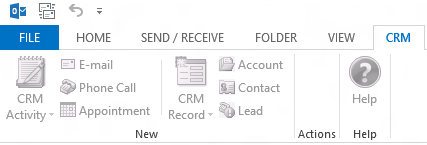
CRM ribbon disappears from Microsoft Outlook

This is really strange. Isn't it?

I thought CRM client installations were simple and I gained confidence every time I  installed and configured
CRM client on yet another PC (totally 5). The 6th one made me remember my early CRM days.

To get around this issue I referred to the KB article at this URL

OR

To resolve this problem, follow these steps:
  1. Exit Outlook.
  2. Click Start, click Run, type regedit, and then click OK.
  3. Locate the following registry subkey:
    HKEY_CLASSES_ROOT\TypeLib\{2DF8D04C-5BFA-101B-BDE5-00AA0044DE52}
  4. Right-click the 2.4 registry key, and then select Export. Save the export to your desktop to create a backup.
  5. Right-click the 2.4 key again, and then select delete.
  6. Start Outlook.

Tuesday, April 23, 2013

How to fix:The Microsoft Exchange MAPI subsystem is not installed on this system

Recently I was installing CRM 2011 Email Router and during the installation process I received an error stating:

There is no email program associated to perform the requested action. Please install an email program or, if one is already installed, create an association in the Default programs control pane

And it displayed an error "The Microsoft Exchange MAPI subsystem is not installed on this system."


Here is the Microsoft KB Article that helps you resolve just this. Your installation must run smoothly thereafter.

Thursday, April 4, 2013

How to fix: "Error while fetching data extension" reporting error in CRM 2011

As a consultant you might have come across this error while accessing reports on CRM 2011.

"Error occurred while fetching the data extension."

Below I show you the screenshot so you can have a familiar look at the error.


Resolution
You might use either of the below two solutions ....... or both:

SQL Server Reporting Service is not running
Check SQL Server Reporting Service for its status. Start the service if its already not running. Follow these steps:
  1. Start > Administrative Tools > Services
  2. Right click SQL Server Reporting Service > Properties > Start
Check SQL Reporting Services URL for the Organization
The SQL Report Server URL must have been configured incorrectly. Follow below steps to resolve:
  1. Open Deployment Manager
  2. Disable the Organization for which Reports are not running
  3. Click Edit Organization
  4. Check validity* of the Report Server URL. If it is not correct, update the Report Server URL. It might be of the kind http://crmsrv:5555/ReportServer_CRM2011
  5. Follow the wizard further and click Finish
  6. Enable the CRM Organization
*To know the correct URL for Report Server, open Reporting Services Configuration Manager and click on Web Service URL and check the URL towards the below of dialog window.

Produce reports and keep your management happy :)