Tuesday, May 17, 2022

Auto number sequence number skipped in Dynamics 365 CE / CRM


While testing auto-number functionality in one of our project, we noticed that the auto-number sequence skips, in case of an exception or error while creating the record.

For example: If the previous record sequence number was 1001, the next record sequence number must be 1002. However, if there was an exception while creating the record, the record isn't created in this case. Now if the user creates another record (without exception), the record sequence number would show 1003 (instead of 1002), as that number would have been skipped.

After going through Microsoft's documentation we understood why this happens, as it is clearly mentioned that the number is incremented before the record creation is started and not after the record has been created.


You can access Microsoft's documentation by clicking here.

Hope that helps!

Monday, May 9, 2022

How to enable modern advanced find in model-driven apps: Dynamics 365 CE (CRM)

I recently came across this new feature to enable modern advanced find in model-driven apps. Thought to share with you all.

Note: When you enable the feature, the advanced find button that you usually see on the bar top right will be gone. There will be changes in the way you access and modify personal views. If you're ready to enable this for your organization, keep reading forward.

Old Experience:

New Experience (No advanced find icon):


Steps to enable modern advanced find in Dynamics 365 CE (CRM)

Following are the steps:

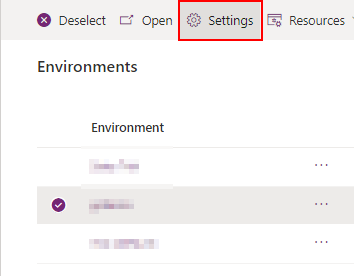
  • Expand Product and click on Features.
  • Scroll down to Advanced find options and toggle the button to On. It will take a few minutes and enable the modern advanced find in your environment.

Now the question is how to access modern advanced find?


Access modern advanced find in Dynamics 365 CE (CRM)

To access, you need to click on the global search box and below you will find this option "Search for rows in a table using advanced filters".


Click this and you will see a flyout option from the right where you can select the entity (table). Click Continue and you'll have the option to edit filters.


Now you ask, how to manage personal views? Click on the View chevron icon. This will dropdown a list of views (both system and personal) configured. Personal views are shown with a person icon. To create, set default or delete personal views, click on Manage and share views.


Hope that helps!

Sunday, April 24, 2022

Power Automate: How to format a date column in Create HTML Table

I had recently written a post on how to populate the lookup value instead of the GUID in Power Automate. You can refer to the same blog post by clicking here.

I had formatted the Created On field too using the same steps as mentioned in that post.

Unit next time!

Wednesday, April 20, 2022

Power Automate: How to add a space between words in header row of Create HTML Table action

 When you add Create HTML Table action step in Power Automate , you can select to add custom columns as headers. When you enter the column names, you will notice that you cannot add a space as shown below. Strange but true.


Even if you go into Peek Code section of the step, you cannot edit it there.

After spending sometime looking for it on the internet, I found that you need to enter a special character that represents a space character. Here are the 2 steps:

  • Place the cursor between Created & On.
  • Ensure that your NumLock is switch on.
  • Hold down the Alt key and enter 32 using the numpad on your keyboard.
  • That will add a space between the 2 words.

I know, I hear you sigh :)

Unit next time!

Sunday, April 17, 2022

Power Automate: How to get the value of a lookup column in Create HTML Table action

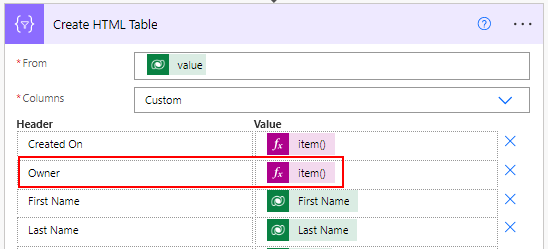
In the below table, I wanted to show the name of the Owner. But if you add the Owner (Value) column directly using dynamic content, you know that it shows the GUID instead of the name. So here is what you need to do.

HTML Output using Power Automate

You need to enter the content as an expression and append the value @OData.Community.Display.V1.FormattedValue after the column name. Here is how the expression will look (without the " quotes) "item()?['_ownerid_value@OData.Community.Display.V1.FormattedValue']", and the value is going to look like a function as shown below.

Create HTML Table action step in Power Automate

So, the question is how do you build this expression for the Owner column or any other field (column) in Dynamics 365 CE (Customer Engagement)?

  • Let the Owner (Value) Dynamic content be selected.
  • Click the 3 dots next to Create HTML Table.
  • Select Peek Code.
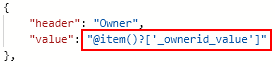
  • You'll see the value as item()?['_<FieldName>_value']
Note: The <FieldName> may be any lookup field name too.

Lookup value using Power Automate
  • Copy this value in a notepad.
  • Append the value as mentioned above so the whole value looks item()?['_<FieldName>_value@OData.Community.Display.V1.FormattedValue']
  • Copy this in the Expression section and click OK.
Note: This works if the you're using a Dataverse connector. It doesn't work if your connector is Dynamics 365 connector. This happened to me. I was using the List records (Dynamics 365) connector and how much ever I tried the above expression, it still would show the GUID. I then changed the connector to Dataverse and used the List rows (Dataverse) action step instead to fetch the records, and the same expression worked.

Until next time!